
Web App Overview
The web app is the main way to control your poles: patterns, text, adjustments, scenes, and settings, all from a browser on your phone, tablet, or laptop.
Which interface do you see?
The player interface changed in July 2026. Choose the screen that looks like yours. Players supplied before July 2026 normally use the previous interface unless they have been updated.
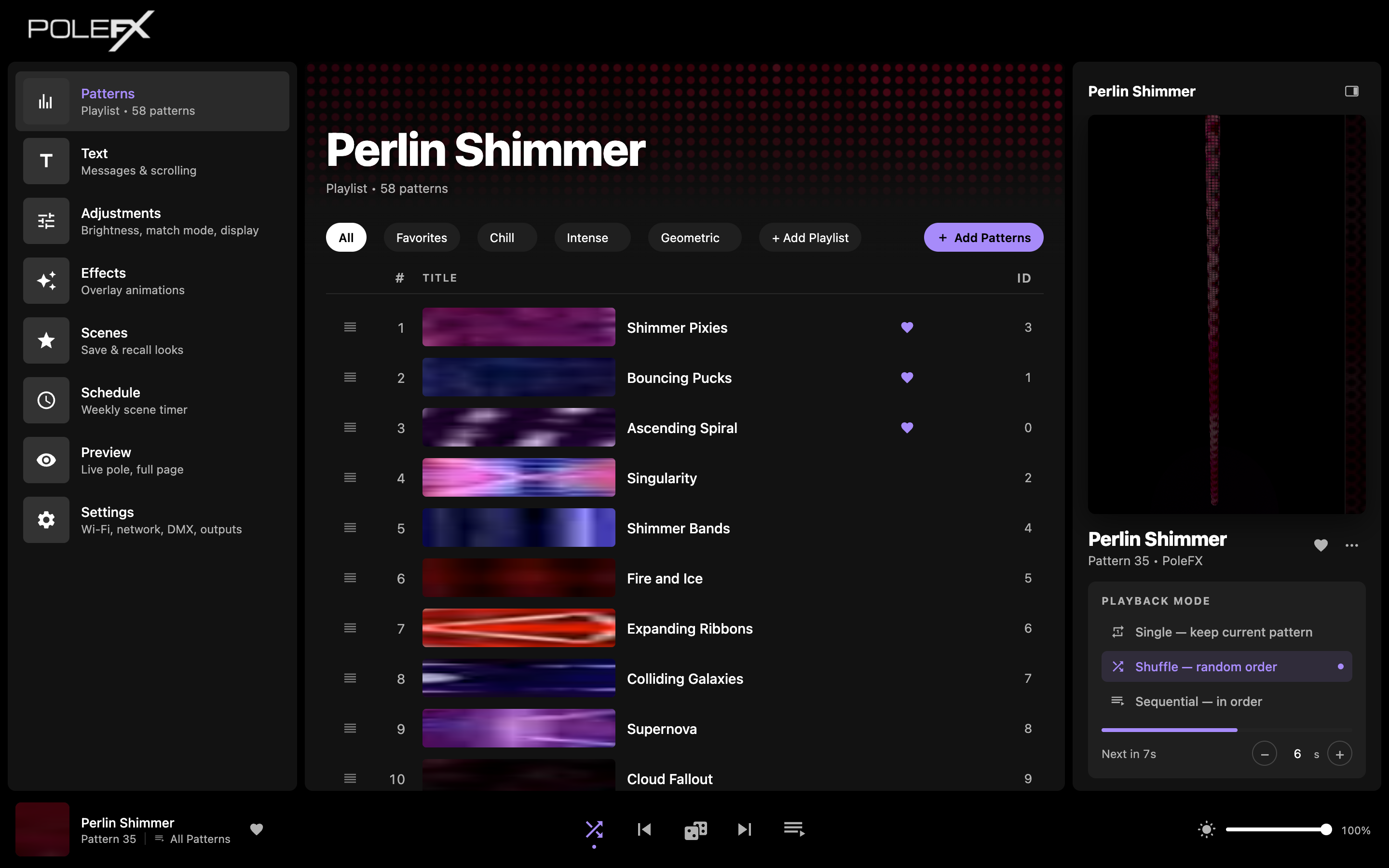 July 2026 and later
Current Player
Wide navigation rail, workbench pages, and a live preview on the right. Look for page names down the left side and a playback bar along the bottom.
Continue below ↓
July 2026 and later
Current Player
Wide navigation rail, workbench pages, and a live preview on the right. Look for page names down the left side and a playback bar along the bottom.
Continue below ↓
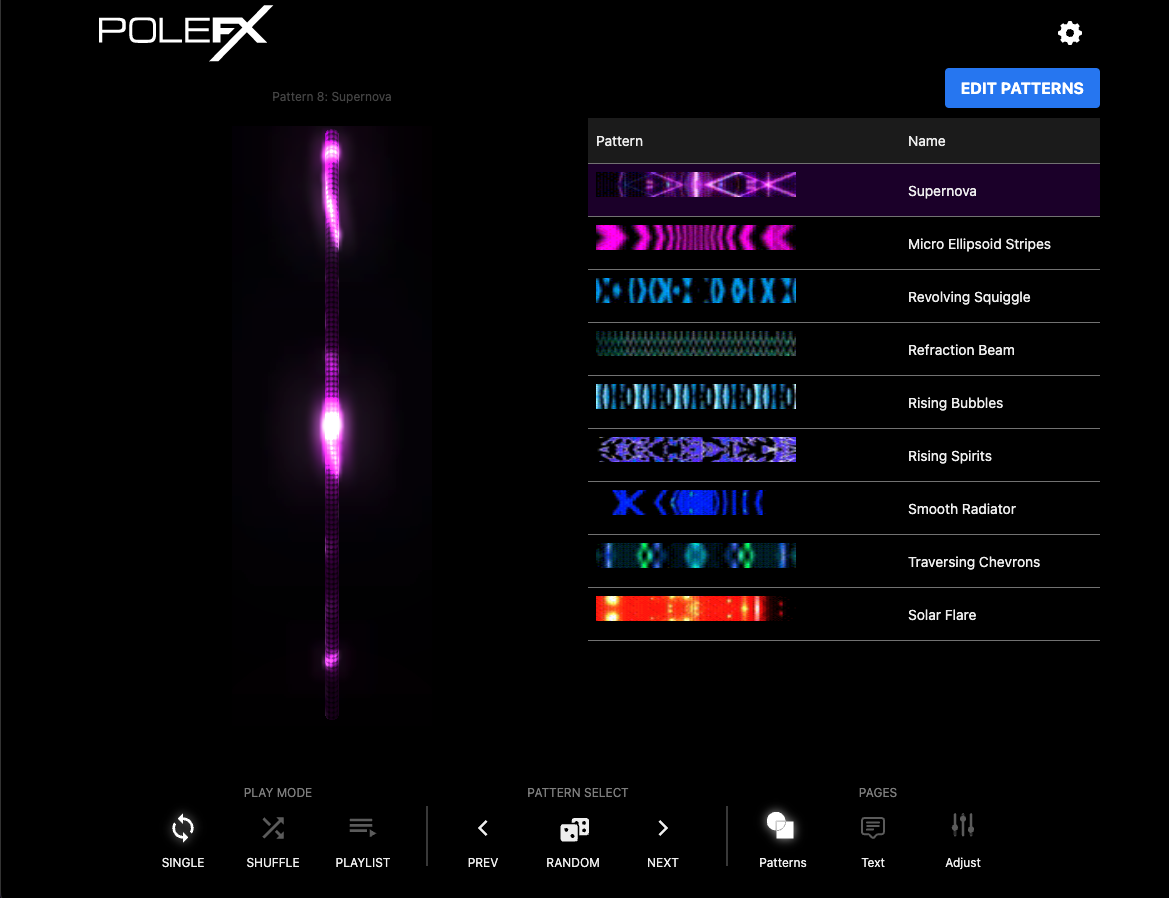 Before July 2026
Previous Player
Compact page controls surrounding a central pole preview. Look for a gear icon in the top right and a row of labeled icons along the bottom.
Open previous guide →
Before July 2026
Previous Player
Compact page controls surrounding a central pole preview. Look for a gear icon in the top right and a row of labeled icons along the bottom.
Open previous guide →
What you are looking at
Every page in the current web app is built the same way: the rail picks the page, the middle does the work, and the right panel shows the pole and what is playing on it.
1
2
3
4
5
6
- Navigation rail The list of pages down the left. Click a name to switch pages. Each row carries a second line saying what that page is for. It is on every page, so this is how you get everywhere else.
- The page you are on The highlighted row in the rail, marked with a colored bar down its left edge. Here it is Patterns, which is where the web app opens.
- Working area The middle of the screen, and the only part that changes from page to page. On Patterns it is the pattern library.
- Right panel A 3D render of the pole as it looks right now, and under it the pattern that is playing with its own controls and the playback mode. It is on every page except Preview, which folds it away and gives the render the whole width.
- Playback bar Along the bottom, on every page: what is playing, previous, random, next, the queue view, and global brightness.
- Settings The last item in the rail. Wi-Fi, network, DMX, outputs, devices, backups, and debug all live there.
The web app runs on the PoleFX Player itself, not on the
internet. Typing polefx.local into a phone that's on your
home Wi-Fi or cellular data won't load anything. You first have to join the
pole's own network. Here's how.
Getting on the pole's network
There are two ways in. Wi-Fi is easiest; Ethernet is faster and better for running several poles.
- Best for
- Getting in with nothing but a phone. The player makes its own network, so no other network has to exist.
- You need
- A phone, tablet, or laptop. Join the network
pfx_defaultwith the passwordpolefx123. - Address to open
http://polefx.local, orhttp://10.10.10.10
- Best for
- Running several poles, and any time you want the faster link.
- You need
- A switch or router that the player and your computer both plug into, and a static IP in
192.168.5.xon your computer (for example192.168.5.50) with netmask255.255.255.0. - Address to open
http://polefx.local, orhttp://192.168.5.101
Over Wi-Fi (easiest)
Out of the box the player is in Access point mode. It broadcasts its own Wi-Fi network.
-
Power on the player and wait
The player takes about a minute to boot. Its Wi-Fi network does not appear until it has.
You should see The front panel lights up and settles on the Now Playing screen.
-
Join the player's Wi-Fi network
On your phone or computer, open Wi-Fi settings and join the player's own network. Every player leaves the factory broadcasting
pfx_default, passwordpolefx123.You should see Your device joins. It reports no internet, which is correct: the player is not a router.
Careful Some phones drop a network that has no internet. If yours keeps switching away, turn off automatic switching for that network.
-
Open the web app
Open a browser and go to
http://polefx.local. If that name does not resolve, usehttp://10.10.10.10instead.You should see The Patterns page, with the pole previewed in the right panel.
Those are the same on every new player, so you can look for that network before you plug anything in. You can change the name, password, and address under Settings > Wi-Fi.
On a player that has been set up before, they may already have been changed. The front-panel display shows the current name and address under Network > Wi-Fi.
Over Ethernet (faster, for multiple poles)
- Connect your computer to the same switch or router as the player.
- Set your computer to a static IP in the
192.168.5.xrange (for example192.168.5.50), with netmask255.255.255.0. The player lives at192.168.5.101. - Open a browser and go to
http://polefx.local(orhttp://192.168.5.101).
Nothing loads?
Work down this checklist. Each step rules out a different cause, so stop as soon as the web app appears.
-
Try the numeric address
The name
polefx.localdoes not resolve on every device. Use10.10.10.10on Wi-Fi, or192.168.5.101on Ethernet.You should see The web app loads. The name was the only problem, so keep using the number on this device.
-
Check you are on the pole's network
If the numeric address also fails, you are almost certainly not on the pole's network yet. On Wi-Fi, recheck that you joined the player's network and that your phone has not switched back to your home Wi-Fi or cellular data. On Ethernet, recheck that your computer has a
192.168.5.xaddress.You should see Your device on the player's network, and the address from step 1 now loading.
-
Read the real name and address off the front panel
A player that has been set up before may no longer use the factory name, password, or address. The front-panel display shows both the network name and the address under Network.
You should see The values the player is actually using. Join that network, and open that address.
See Network for the full picture of how the player, poles, and your control device connect, and the Settings → Wi-Fi and Network tabs for changing how the player joins a network.
What's in the web app
Once you're in, the left navigation rail switches between these pages.
PatternsPick and sequence the looks the pole plays.
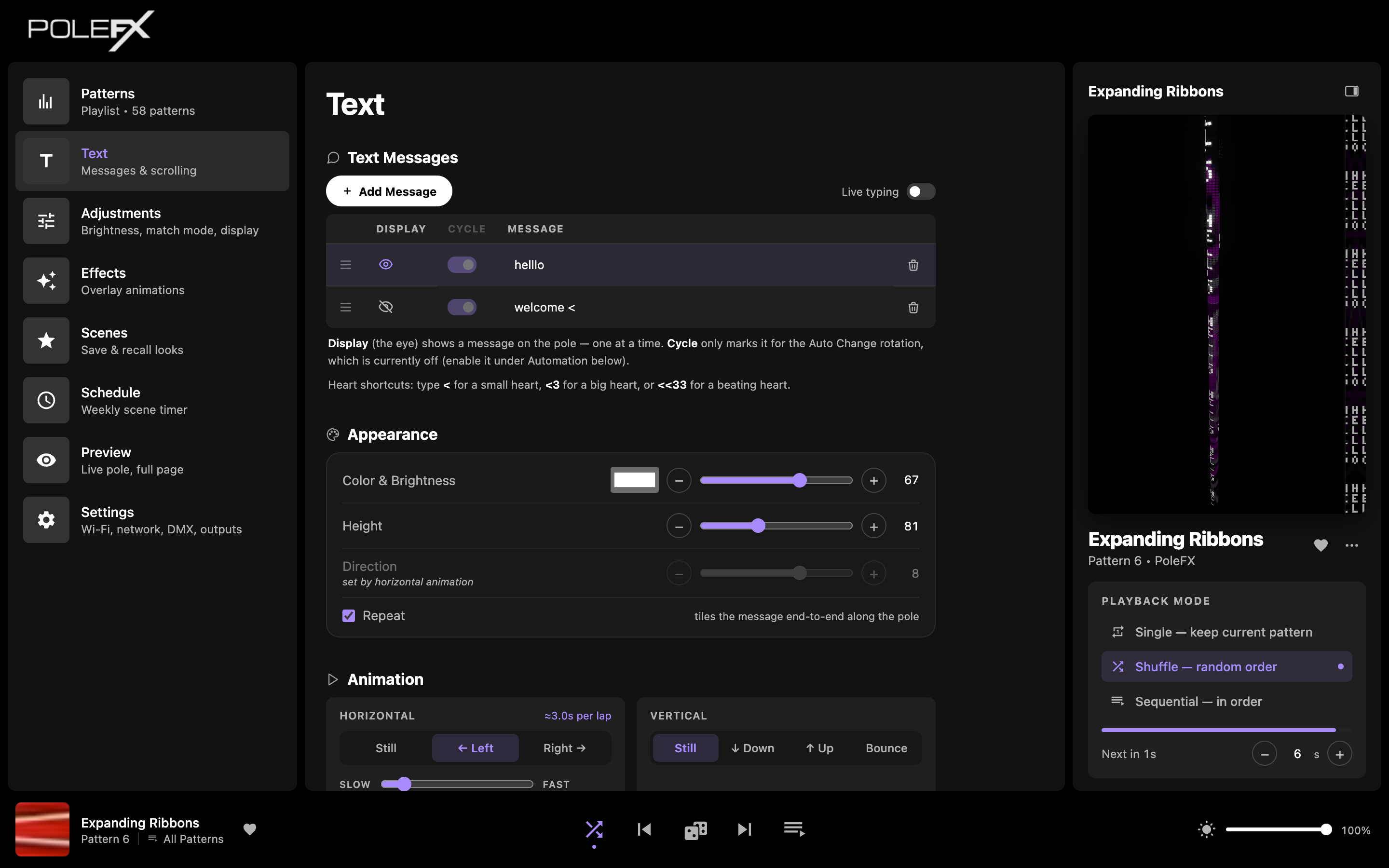 TextScrolling messages on the pole.
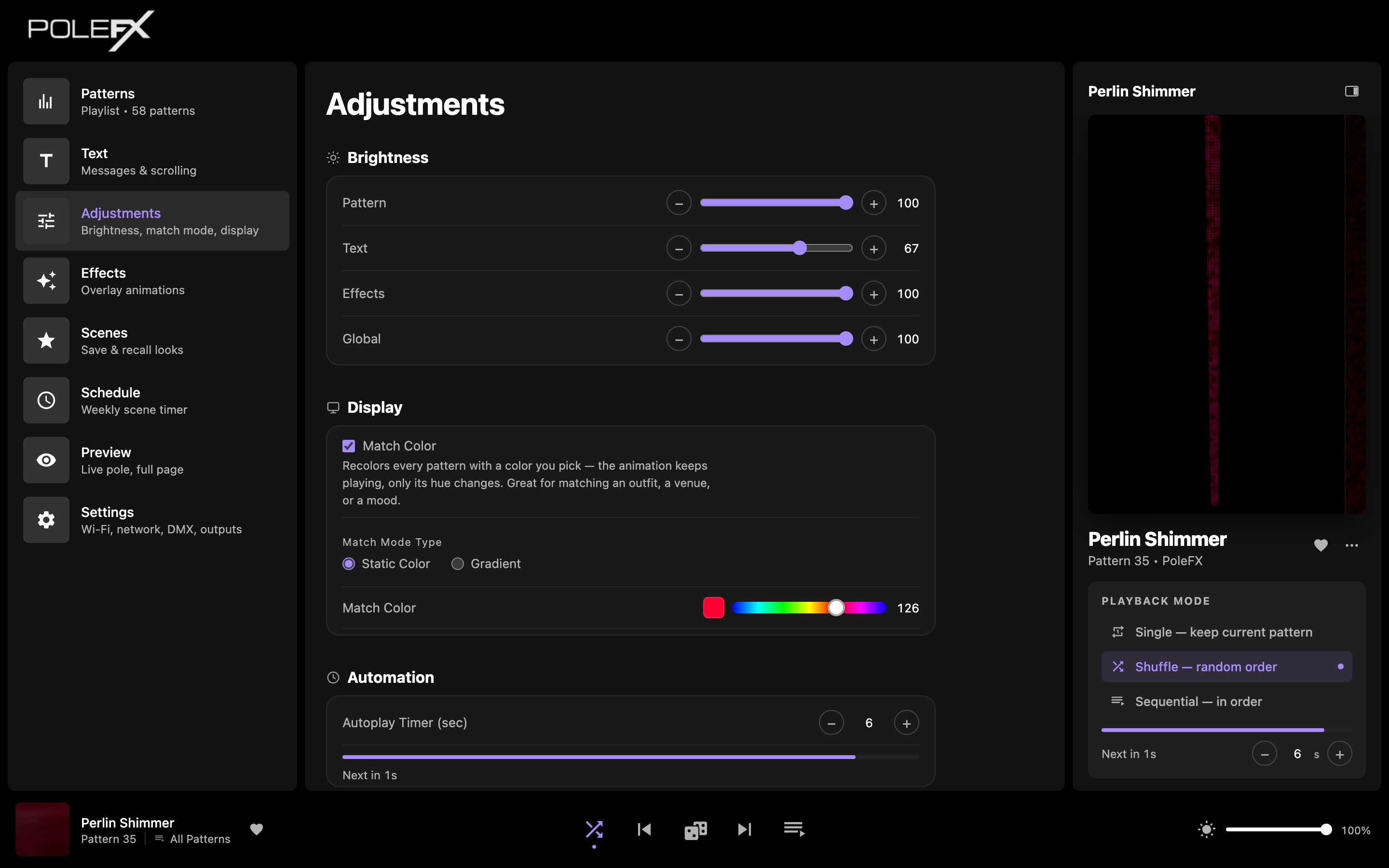 AdjustmentsBrightness, match color, and the autoplay timer.
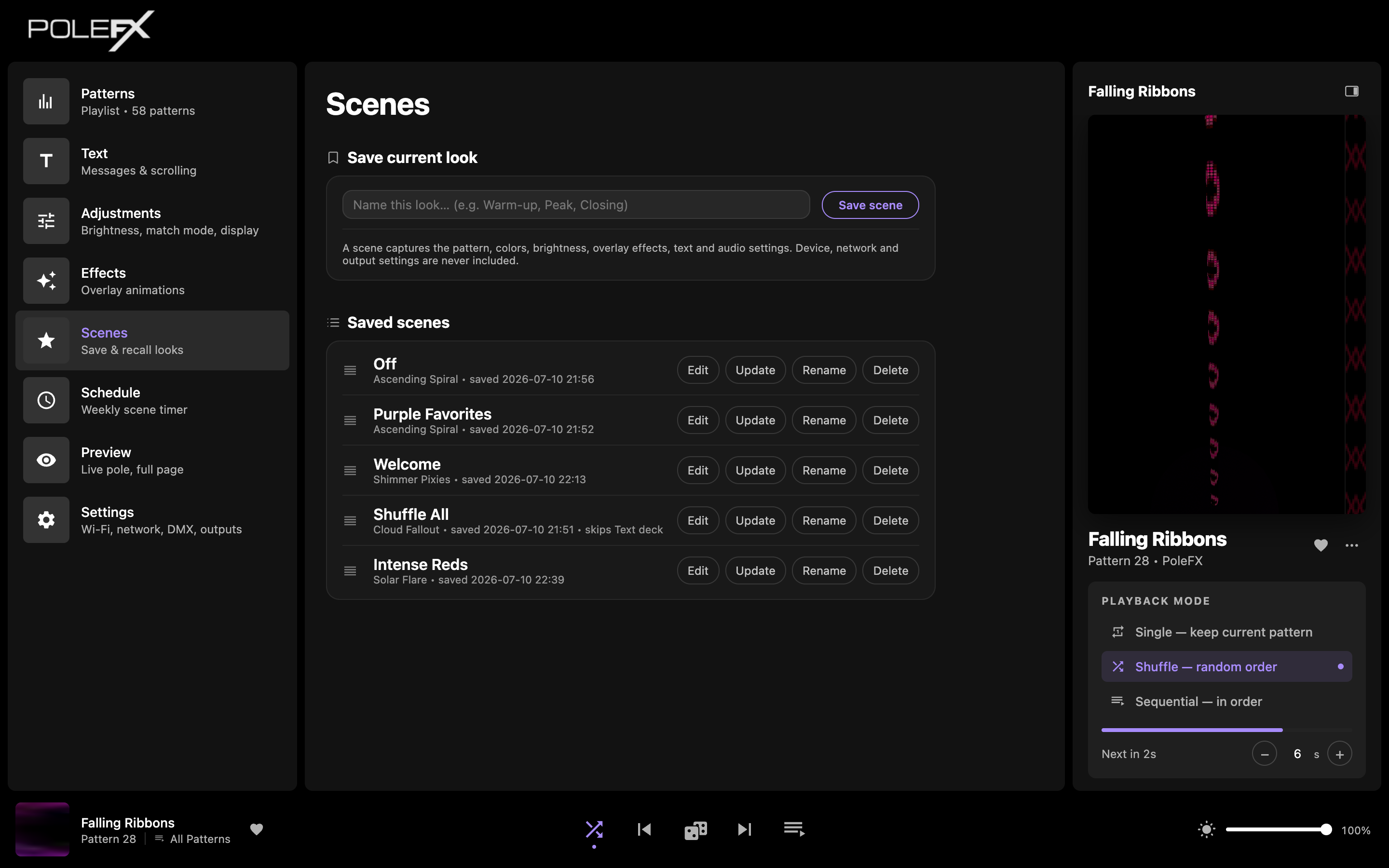 ScenesSave and recall complete looks.
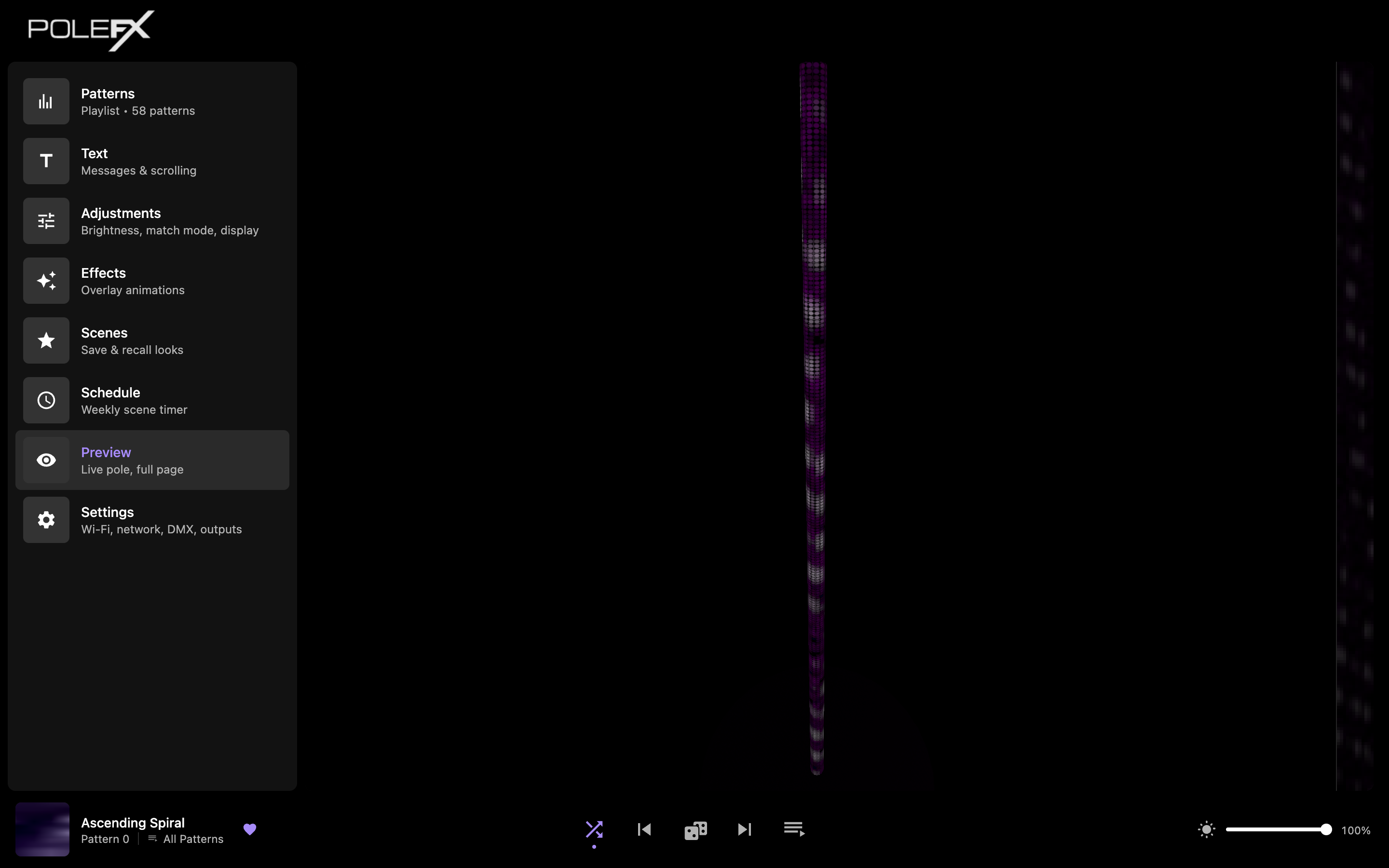 PreviewFull-page live 3D render of the pole.
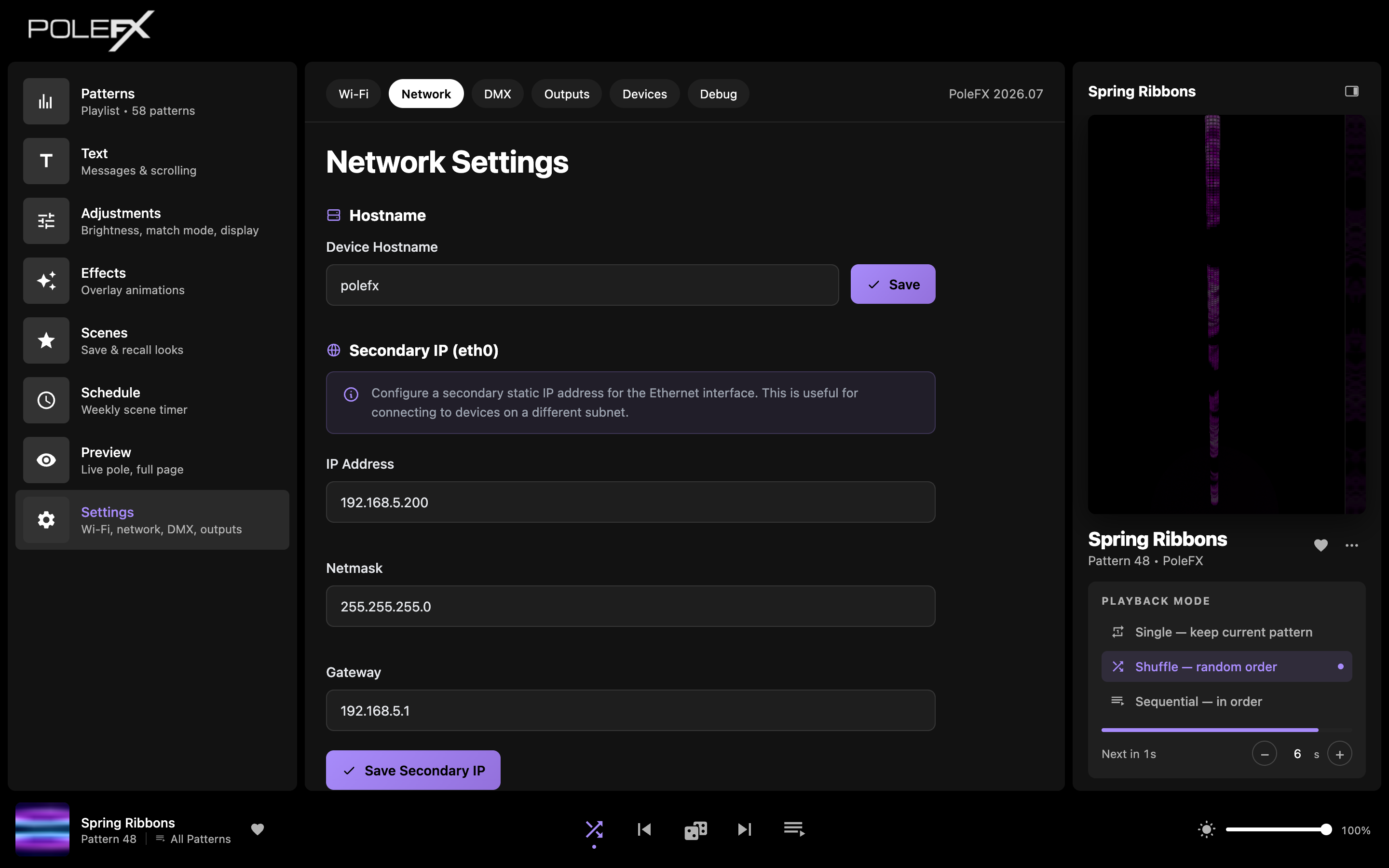 SettingsWi-Fi, network, DMX, outputs, devices, backups, and debug.
A show, start to finish
The everyday path through the app. Each step happens on one page, and every change is live on the pole as you make it.
-
Pick a pattern
On Patterns, click any row in the list.
You should see The row highlights and the pole plays that pattern at once. There is no apply step.
-
Set the brightness and color
On Adjustments, set the Global brightness master, and use Match Color to recolor every pattern with a static color or a gradient.
You should see The animation keeps playing while its hue changes.
-
Add a message
On Text, press + Add Message, type it, and turn on the Display eye.
You should see The message on the pole, over whatever pattern is playing. Only one message shows at a time.
-
Save it as a scene
On Scenes, name the look and press Save scene. A scene captures the pattern, colors, brightness, and text.
You should see The scene in your saved list, ready to recall in one tap.
-
Check it on a big screen
Open Preview for a full-page 3D render of the pole, streaming the real output at about 30 fps.
You should see The pole fill the screen, so you can judge the look without watching the physical pole.
Careful The preview needs a browser with WebGL and hardware acceleration. If it stays black, reload the page or close any stale PoleFX tabs.
-
Close the browser
Nothing else to do. Recall the scene later from Scenes.
You should see The pole keep playing the look you left it on, with no device connected.
Good to know
Most of the app takes effect the moment you touch it. Settings is the exception, and the pole carries on without you.
Picking a pattern or tweaking brightness takes effect right away. There is no apply step.
Settings is the exception, and it is not one rule. Wi-Fi and Network change nothing until you press their Save button. DMX and Outputs have no Save at all and take effect as you type, which is why the Outputs tab carries a warning. On Devices, Save to pole writes to that pole rather than to the player, and switching a protocol on or off waits for that pole to restart.
The pole plays whatever you last set, even after you close the browser or your phone goes to sleep. You do not need to stay connected.
- The panel on the right is live. It's a 3D preview streaming the pole's real per-LED output, and it appears on every page. For a bigger view, open the Preview page.
- More than one person can control it. Several devices can have the web app open at the same time; everyone sees the same live state.