
Adjustments
Global display settings: brightness balance, color matching, and how fast patterns auto-advance.
 1
2
3
4
5
6
1
2
3
4
5
6
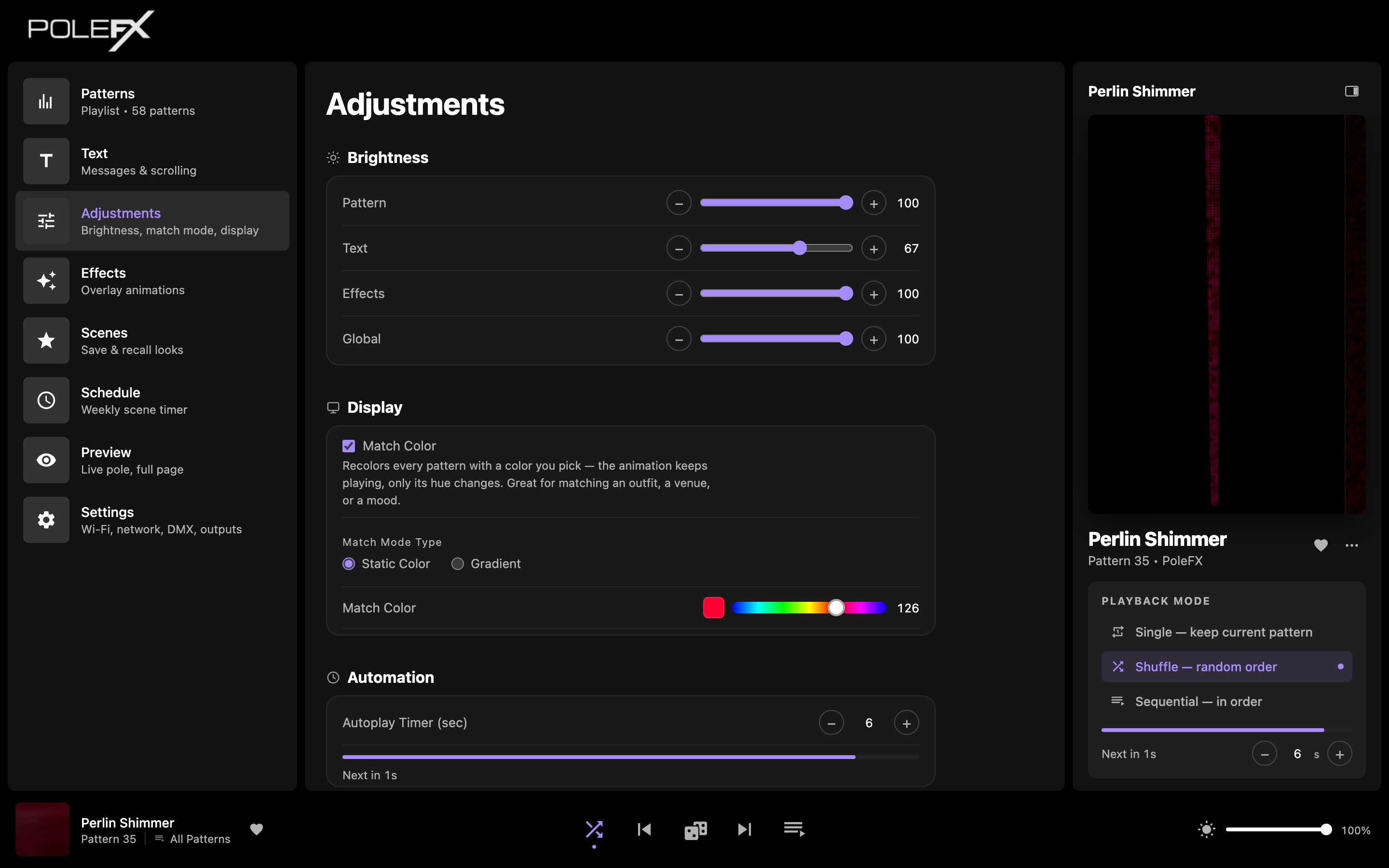
- Pattern Scales the pattern and nothing else. Messages keep the level you gave them.
- Text Scales the messages and nothing else. It is the same level as Color & Brightness on the Text page, so moving either one moves both.
- Global Scales the finished picture, so the pattern and the messages dim together. This is the one to reach for when the whole pole is too bright.
- Match Color Under Display, off in this capture, with a line under it saying what it does. Switch it on and a panel opens underneath with the choice of a Static Color or a Gradient.
- Autoplay Timer (sec) Under Automation. How many seconds each pattern holds before Shuffle or Sequential moves on. Single mode holds one pattern and ignores it. The bar under it counts down to the next change, so you can see the timer running.
- Bottom bar brightness The same Global value, on every page. The sun icon beside it switches the output between off and full, and it is a jump rather than a memory: switching back on gives you 100, not the level you were at.
Brightness
Independent levels for Pattern and Text, plus a Global master that scales all of them together.
The pole draws its picture in layers, and each slider works on one of them. Global is applied last, to the result.
-
GlobalApplied last
Scales the finished picture, so the pattern and the messages dim by the same proportion. This is the slider the bottom bar carries on every page.
-
TextOver the pattern
Scales the messages only. The pattern behind them does not move.
-
PatternBase picture
Scales the pattern only. Messages keep the level you gave them.
Global does not replace the other sliders, it scales what they produced. So the balance you set between pattern and text survives a change to Global, and Global is the control to use when the whole pole is too bright for the room.
Each slider runs 0 to 100 on its own layer. Equal numbers on two sliders do not mean equal light on the pole, so set them by eye against the pole itself rather than by matching values.
The same layer order decides what every other control method reaches. See what controls what.
Match Color
Recolors every pattern with a color you pick. The animation keeps playing, only its hue changes. Great for matching an outfit, a venue, or a mood.
- Static Color: one hue across everything.
- Gradient: blend across a range of hues.
Both live in a panel that opens under the Match Color checkbox, so the page shows nothing extra while Match Color is off.
The same pattern, three ways
Match Color changes color only. Whatever the pattern was doing, it keeps doing: the same shapes, the same movement, the same timing.
- What you set
- Nothing. This is how a pattern arrives.
- What the pole shows
- The pattern in the colors it was made with, however many that is.
- The panel offers
- Nothing. The panel stays closed until Match Color is switched on.
- Reach for it when
- The pattern is the look you want.
- What you set
- Match Color on, Static Color, then a hue on the slider. The swatch beside it shows the hue you have landed on.
- What the pole shows
- The same animation in a single hue. Bright parts stay bright and dark parts stay dark, so the shapes still read, but every color in the pattern is now that one.
- The panel offers
- The hue slider and its swatch.
- Reach for it when
- You are matching one color: an outfit, a logo, a room.
- What you set
- Match Color on, Gradient, then a preset from the list. Each row shows the blend beside its name.
- What the pole shows
- The same animation blended across the preset's colors instead of one hue. The blend is laid around the pole, so the whole range of it is there at any point along the length.
- The panel offers
- The preset list, Edit Preset and New Preset for building your own, and a Scroll Speed that turns the blend around the pole, either way from a standstill.
- Reach for it when
- One hue is too flat, and the pattern's own colors are too busy.
A preset of your own needs a name and at least two colors. Add colors one at a time, and tap a color you have added to take it off again.
Automation
The Autoplay Timer sets how many seconds each pattern holds before Shuffle or Sequential mode advances to the next one.
What the timer drives
The timer belongs to the playback mode, which you set in the right-hand panel of the Patterns page. Two of the three modes run on it. The third switches it off.
- What moves it on
- The Autoplay Timer. Each pattern holds for the number of seconds you set, then the pole changes.
- Which pattern is next
- A fresh pick from the patterns in the list you are playing. The pick is random every time, so a pattern can come round twice in a row.
- The countdown
- A bar and a "Next in" reading show how long the current pattern has left.
- Reach for it when
- You want variety and do not care about the order.
- What moves it on
- The Autoplay Timer, exactly as in Shuffle. One timer serves both modes.
- Which pattern is next
- The next one down the list you are playing, and back to the top after the last. Drag the rows on the Patterns page and you have changed the running order.
- The countdown
- The same bar and reading as Shuffle.
- Reach for it when
- The order matters: a set that builds, or a demo you want to repeat.
- What moves it on
- Nothing. One pattern plays until you change it.
- Which pattern is next
- There is no next one. The transport buttons and the pattern rows still work, so you change patterns by hand.
- The countdown
- Hidden, because there is nothing to count down to. The Autoplay Timer stays where you left it, ready for the next time you pick a timed mode.
- Reach for it when
- One look has to hold: a photo, a class, a cue you are waiting on.
The countdown is on the now-playing panel as well as on this page, and both carry the same seconds control, so you can retime a set without leaving the page you are on.