
PoleFX Control
Power the Player. Power the pole. Connect them with Ethernet.
Connect the Player
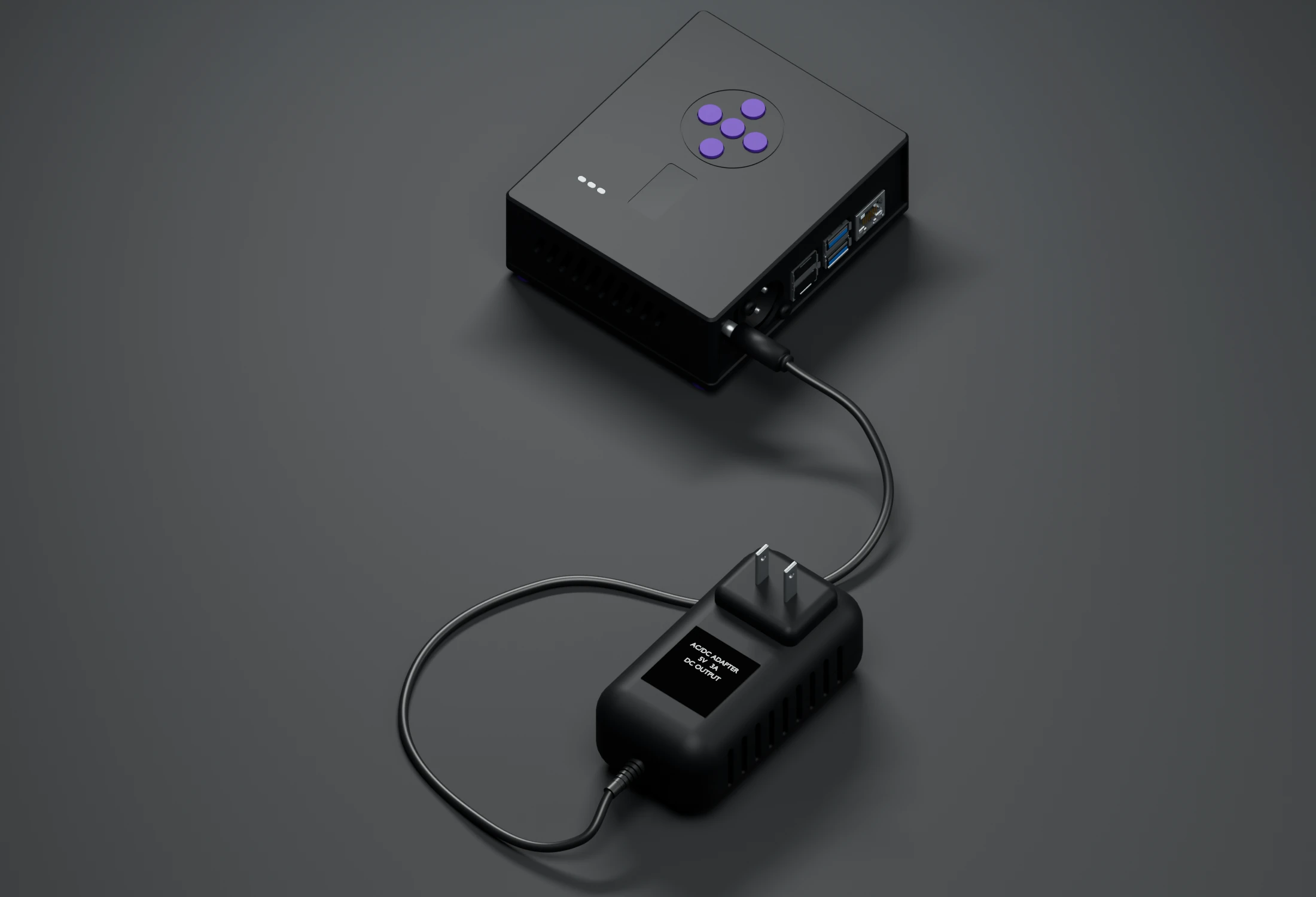
Seat the round barrel plug, then plug the supplied 5 V, 3 A adapter into a wall outlet. Allow about a minute to start.
Power the pole too: plug the Mean Well supply’s two-pin connector into the pole’s power input, then plug its AC cord into an outlet. On a freestanding pole, power and Ethernet connect to the small input box on the pole’s cable.
Connect your phone and choose a pattern →
Prefer buttons? Try the front-panel menu.
More about the Player
Ports and buttons
This box serves the pattern content to your poles and carries every control interface: the web app, the front-panel screen, and DMX.
 1
2
3
4
5
6
1
2
3
4
5
6
- Screen Shows what is playing and the menu. Try the interactive panel.
- Five buttons Up, Down, Left, Right and Select. They work without a phone.
- Power in Use the supplied 5 V, 3 A DC barrel adapter.
- DMX in The pictured version has a three-pin XLR input. Older Players use a screw terminal. See DMX control.
- USB Four sockets; none is required for normal operation.
- Ethernet Connect to a powered pole, or to a switch for several poles.
The pole is dark or not moving
- Dark: check the pole’s own power supply first.
- Still pattern: give the Player about a minute to boot. If it stays still after two minutes, check the cable and Settings > Outputs.
- Scrambled or upside down: check that the output profile matches your pole in Settings > Outputs.
A brief purple flash at power-on is normal.
Other ways to control it
- Web app: patterns, color, text and saved scenes.
- Front panel: patterns, brightness and settings at the box.
- DMX: cues from a lighting console.
- Pixel streaming: send your own pixels directly to the pole.
For several poles, see Network.
How signals reach the pole
Almost everything reaches the pole through the Player. Pixel streaming is the exception: it goes straight to the pole and leaves the Player out of the path.
A pole plays whichever source reached it first and kept sending. The Player sends continuously, so it keeps the pole and your media software is ignored. Before you stream your own pixels, switch that output off in Settings > Outputs. One output can drive more than one pole, so check what else that output feeds before you switch it off. See Pixel Streaming.
How brightness and control methods interact
The pole builds its picture in layers
The Player draws the pattern first, then puts text over it, then dims the finished picture with the global brightness. That order is why global brightness moves the text and the pattern together, while the pattern brightness moves only the pattern.
-
Global brightnessApplied last
Scales the finished picture, so it dims the pattern and the text by the same amount.
-
TextOver the pattern
Messages are drawn over everything below. Turning text off removes this layer.
-
PatternBase picture
The look the pole plays, with its own brightness and color settings.
No control method outranks another
There is no priority order between the web app, the front panel, and DMX. They all change the same settings, so the most recent change wins. If your console moves the brightness and you then move the web slider, the web value stands until the console moves that fader again. A fader left parked does not hold a setting down.
Two things do behave differently, and they are the ones that surprise people:
Several browsers can be open at once. A change made anywhere appears everywhere, including on the front panel.
Settings that no DMX channel maps to are left alone, and stay wherever the web app or the front panel last put them.
If a pole's output is inactive in Settings, the Player sends it nothing at all, whatever any control method says.
A scene is not a layer and it does not stay switched on. Recalling one writes its saved values into the current settings and stops there, so anything you change afterwards simply overwrites it. See Scenes.