
Web App
This guide covers the player interface supplied before July 2026. Players sold since then, and older players that have been updated, use the current interface instead.
Is this your screen?
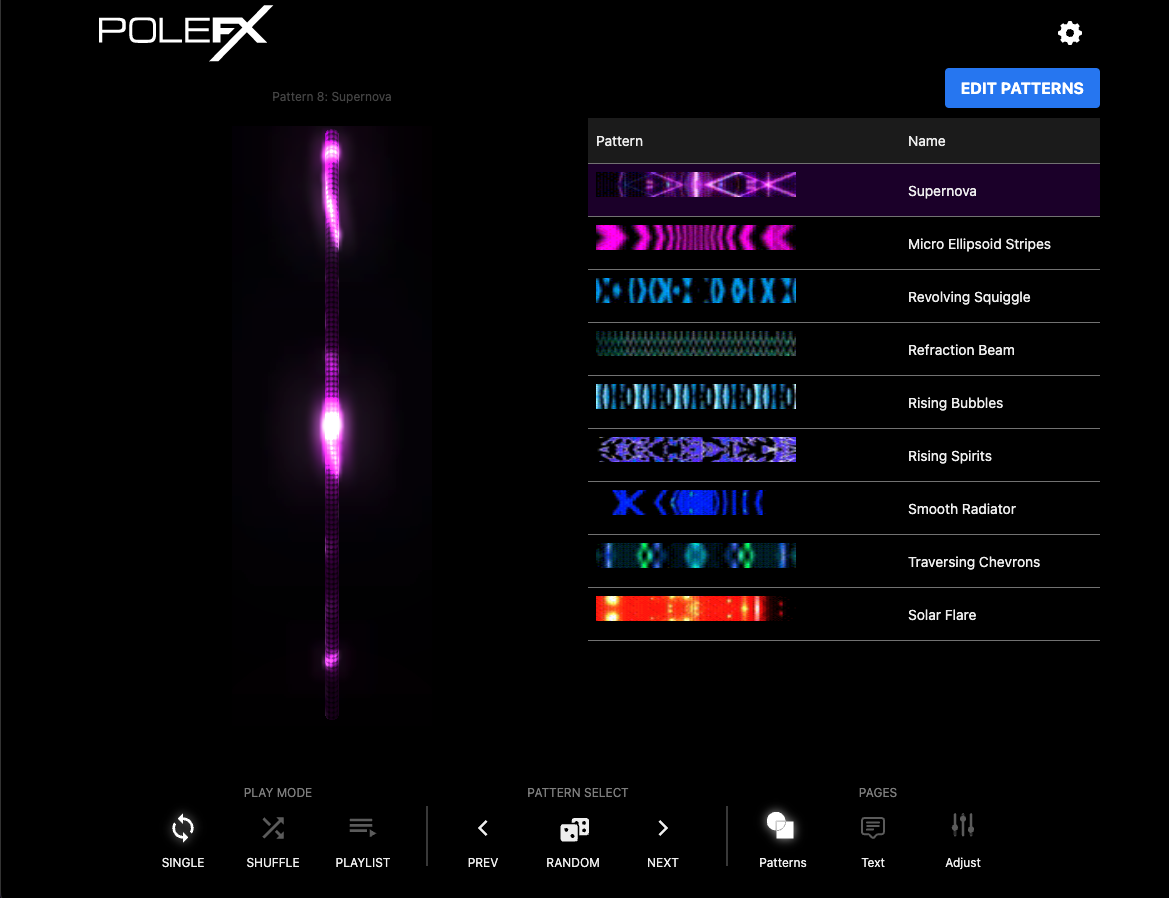
Three things tell the two interfaces apart at a glance. All three are in the picture below.
The logo sits top left and a single gear icon sits top right. There is no list of page names down the left side.
A tall pole preview on the left, the page content on the right, and a line above the preview naming the pattern that is playing.
One row of icons across the bottom, in three groups: PLAY MODE, PATTERN SELECT, and PAGES.
If your player shows page names down the left side and a live preview in a panel on the right, it has the newer interface. Use the current interface guide, which covers the same jobs plus the pages the previous interface does not have.
Open the web app
Make sure your device is on the same network as the PoleFX Player. Join the
player's Wi-Fi network or connect through Ethernet, then open
http://polefx.local in Chrome.
Interface map
 1
2
3
4
5
1
2
3
4
5
- Pole preview The LED pattern that is playing now. The line above it names the pattern, for example "Pattern 8: Supernova".
- Page content The controls for the page you picked. This capture shows Patterns, so the content is the pattern list and the EDIT PATTERNS button.
- Play mode Single, Shuffle, and Playlist. Single loops the selected pattern, Shuffle cycles the active patterns at random, and Playlist plays them in order.
- Pattern controls PREV, RANDOM, and NEXT. Previous and Next follow the order of the pattern playlist.
- Pages Patterns, Text, and Adjust. These three buttons choose what fills the page content area, so this is how you reach everything else.
Play mode
- Single: loop the selected pattern.
- Shuffle: cycle through active patterns randomly.
- Playlist: play active patterns in order.
Shuffle and Playlist use the Autoplay Timer from the Adjust page.
Pattern controls
Previous and Next follow the order of the pattern playlist, which is the order of the list on the Patterns page.
If your player was updated
The July 2026 interface does the same jobs, but the controls moved. This table translates the habits.
- Patterns
- The Patterns page button at the foot of the page. The list is the playlist.
- Text
- The Text page button. One message at a time.
- Brightness and color
- The Adjust page: Brightness, Match Mode, and Match Mode Color.
- Autoplay timer
- Adjust page, Autoplay Timer (seconds).
- Play mode
- PLAY MODE at the foot of the page: Single, Shuffle, Playlist.
- Previous and next
- PATTERN SELECT at the foot of the page: PREV, RANDOM, NEXT.
- Changing page
- The three PAGES buttons in the bottom right corner.
- Patterns
- Patterns in the navigation rail. The same list, plus favorites, named playlists, and a fixed ID column.
- Text
- Text in the rail. Still one message at a time, chosen with the eye in the row.
- Brightness and color
- Adjustments: separate Pattern, Text, and Global brightness, and Match Color.
- Autoplay timer
- Adjustments, Autoplay Timer (sec).
- Play mode
- The panel on the right of the Patterns page. Playlist is now called Sequential.
- Previous and next
- The playback bar along the bottom of every page, which also has a queue view.
- Changing page
- The navigation rail down the left side.
Three pages in the current interface have no button in the previous PAGES row:
- Scenes: save a complete look and recall it later.
- Preview: a full-page 3D render of the pole.
- Settings: Wi-Fi, network, DMX, outputs, devices, backups, and debug, all in the browser.
Previous interface guide
You are reading the guide for players supplied before July 2026. These are its three pages.